Backing up and restoring
How to save everything BeeBEEP keeps in one backup file, and how to restore it on a new computer or on this one.
Per: utenti · Da BeeBEEP 6.0.0 · Aggiornata il
Alcune pagine sono solo in inglese.
BeeBEEP has no server: your messages live only on your devices. The only way not to lose them is a backup. This page says how to make one, what it holds, and how to restore it on a new computer or on the same one. Backing up and restoring are on Windows, macOS and Linux.
What a backup holds
One file holds everything BeeBEEP keeps for you on this computer: your profile and picture, your chats and their messages, your contacts, groups and circles, the history imported from BeeBEEP 5.x, your settings, and the keys that prove who you are and unlock your data. Restored elsewhere, it is you: your contacts see the same person as before, with the same security key.
The files you sent or received stay where they are, in their folders, and are not in the backup.
Making a backup
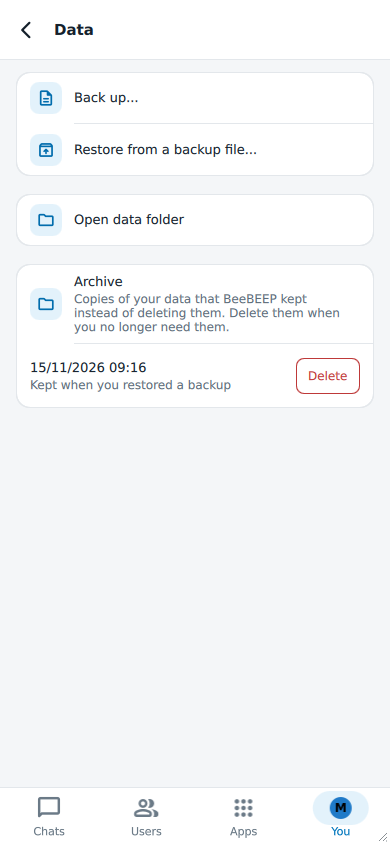
Open Settings > Data and choose Back up.... On a Mac it is also in the File menu.
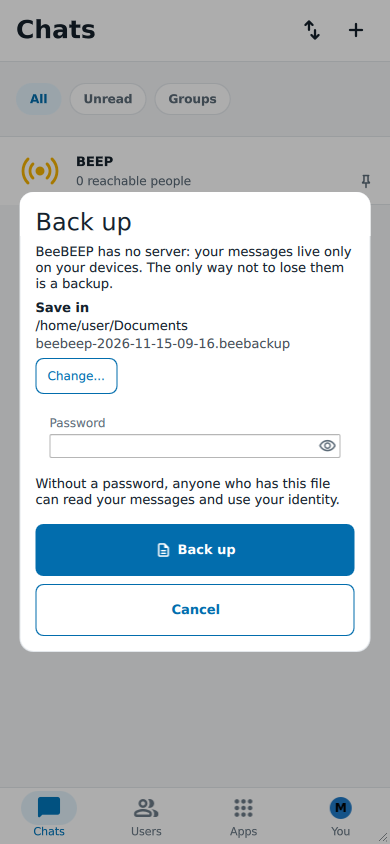
The dialog says where the file goes, under Save in: your Documents folder, or your home folder when there is none. Change... picks another folder. The file's name is the moment it is made, for example beebeep-2026-11-14-17-12.beebackup (year, month, day, hour and minute, always on the 24-hour clock); a file of that name is never replaced, the new one is named beebeep-2026-11-14-17-12 (1).beebackup.
Password is optional. Under it the dialog says what the choice means:
- without a password, "anyone who has this file can read your messages and use your identity";
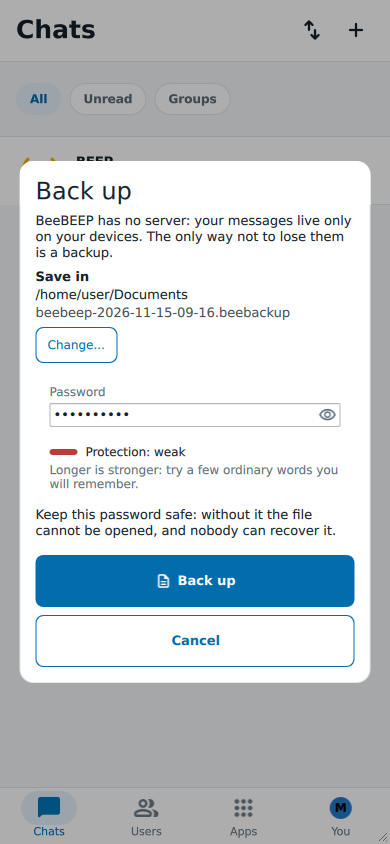
- with one, "keep this password safe: without it the file cannot be opened, and nobody can recover it".
The meter under the field shows how strong the password is; any length is accepted. Then choose Back up.
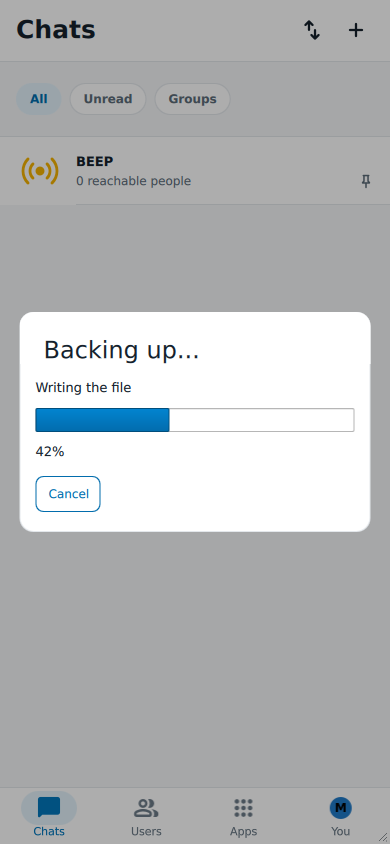
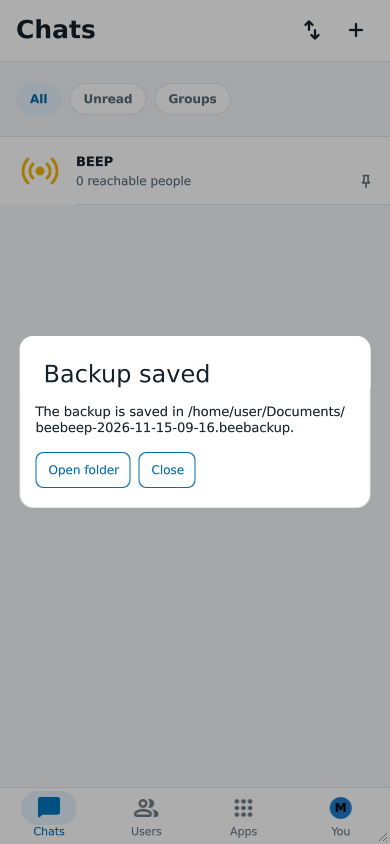
Backing up... shows Copying your data, then Writing the file with a percentage; Cancel stops it and leaves no file. At the end the same window is titled Backup saved and says where the backup is. Open folder shows that folder with the new file selected.
Restoring on a new computer
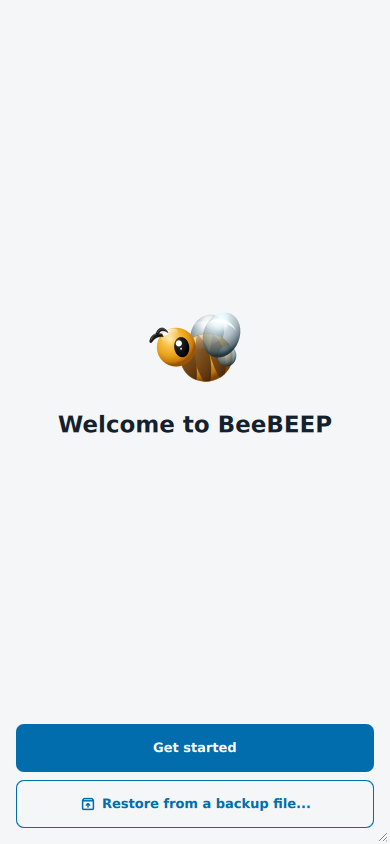
Install BeeBEEP and start it. The first screen, Welcome to BeeBEEP, has Get started and, under it, Restore from a backup file...: choose it and pick the file. What follows is the same as below.
Restoring in a running BeeBEEP
Open Settings > Data and choose Restore from a backup file.... On a Mac it is also in the File menu. It is not available while a backup is being made.
Pick the file. BeeBEEP reads its beginning first: a file that is damaged, or not a BeeBEEP backup, or one made by a newer version of BeeBEEP is said at once, and nothing changes. Otherwise it asks once more, with the file's name and "Your current data is set aside, not deleted.": Restore closes BeeBEEP, which starts again by itself and restores the file before it opens anything else.

The password screen
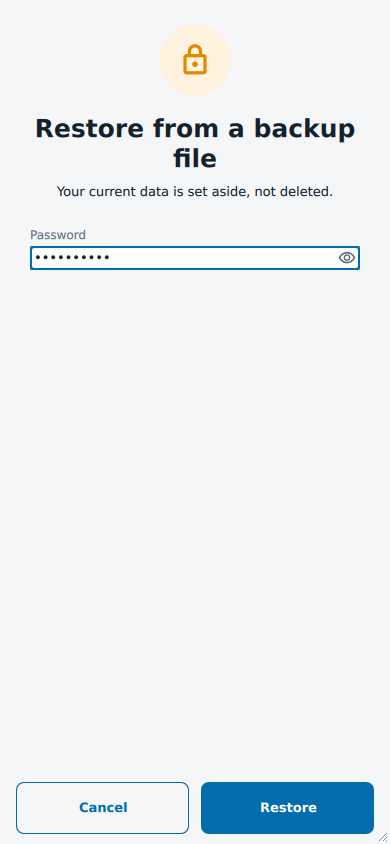
A backup made with a password asks for it when BeeBEEP starts again: Restore from a backup file, the same line about your current data, the field, and Restore beside Cancel. While it waits, BeeBEEP does not connect to anyone.
| What BeeBEEP says | What it means |
|---|---|
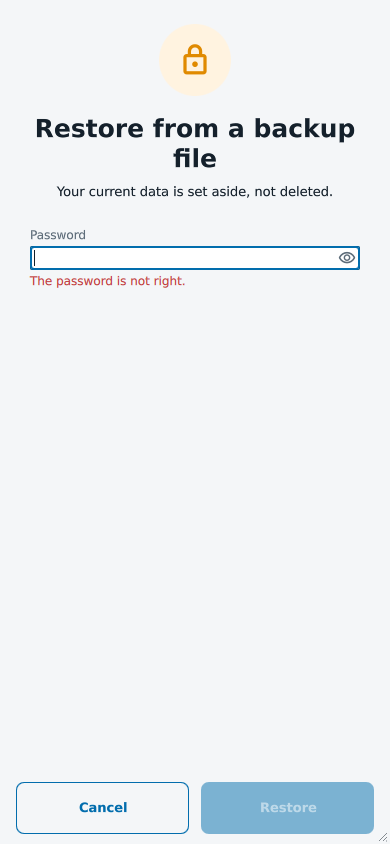
| The password is not right. | Type it again: you may try as many times as you need. |
| This file is damaged or is not a BeeBEEP backup. | The file was changed or cut after it was made. Try another copy of it. |
| This backup was made by a newer version of BeeBEEP. Install the latest version to restore it. | Install the latest version on this computer, then restore again. |
| There is not enough free space: ... are needed. | Free that much space on the disk of BeeBEEP's data folder, then restore again. |
| The backup could not be restored because of an unexpected error. Your data is as it was. | Nothing was changed. Try again later. |
After any of the last four, only Cancel is left. Cancel starts BeeBEEP again with your data as it was.
When a restore does not finish
A backup with no password asks for nothing: the start that restores it reads it at once. If it is refused before anything is changed -- damaged, made by a newer version, not enough space, or an unexpected error -- BeeBEEP opens with your data as it was and says why, in the same words as the table above.
If something goes wrong after the restore has begun to change your data, BeeBEEP puts everything back as it was, starts again by itself, and then says "The backup could not be restored because of an unexpected error. Your data is as it was."
Your data set aside
A restore never deletes what was there: your earlier data is kept aside, in BeeBEEP's data folder. Settings > Data > Archive lists it, "Kept when you restored a backup", with the day it was kept. Delete removes it for good, after a confirmation; until then it stays.
When this computer lacks the key of your data
A data folder copied from another computer opens with This computer does not have the key that unlocks your data. If you have a backup, choose Restore from a backup file... there: BeeBEEP sets the old data aside, starts with new keys and restores the backup into them, so you are again the person of the backup. The same button is on Can't unlock your data.
Phones and tablets
Backing up and restoring are not available on Android and iOS yet: there the commands and the rows are not shown.