Voice calls
How to call a contact with your voice, answer or decline a call, mute yourself, hang up and call back a call you missed.
For: users, administrators · From BeeBEEP 6.0.0 · Updated on
A voice call lets you talk with one of your contacts, two people at a time, on the same network. The voice goes from one computer to the other, encrypted, with no server in between. This page is for whoever makes and takes calls, and for the administrator who decides whether calls are allowed.
What you need
- BeeBEEP: calls come with it, as the Call plugin. An administrator may turn them off; then the phone button does not appear.
- A contact: you can call a user you have made a Contact, in a private chat. You cannot call a group, BEEP or a user you have blocked. A person who uses BeeBEEP 5 cannot take calls: calling them leaves a line in their chat saying that you tried to call, and when, and your chat reads Not reachable.
- A microphone: BeeBEEP asks the system for it the first time you call or answer.
Making a call
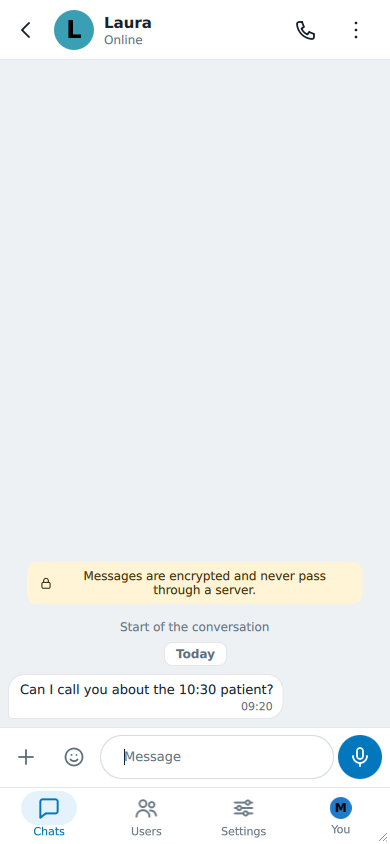
Open the private chat with the person and press the phone button in the chat's header.
While it rings, a strip on top of the window says Calling Laura... with Cancel. When the call is not taken, the strip tells you why for a few seconds: Laura declined, Laura is busy, No answer from Laura, or Laura does not have Call when her BeeBEEP has no Call plugin.
If the person is not connected now, nothing rings. The strip says that Laura is not reachable now and that she is told you called: she finds a missed call in the chat when she comes back.
You can ring one person at a time. While your call rings, the phone button is greyed and says You are already calling Laura.
Answering or declining
A call rings for about 30 seconds.
- On a computer, a strip on top of BeeBEEP's window shows who calls, with Answer and Decline. When BeeBEEP is not the window in front (another program in front, minimized, or in the tray), a small window also appears at the bottom right of the screen, with the same two buttons. It never takes the keyboard from what you are typing; pressing Answer there brings BeeBEEP to the front.
- On a phone, the call takes the whole screen, with Decline on the left and Answer on the right.
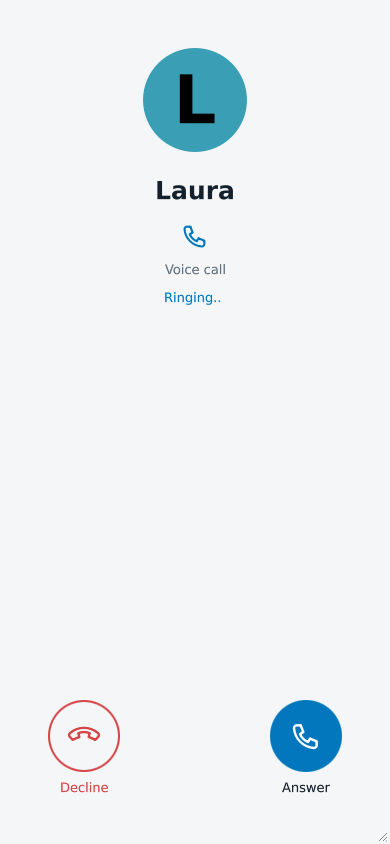
When you answer, the call starts in a moment. When you decline, the caller reads that you declined.
When the ring is silent
The ring follows the same switches as BeeBEEP's other sounds. It is silent when notifications are off or their sound is off in notifications, when the system's do-not-disturb is on, and when you muted the caller's chat. The call still shows on screen, and the window's button in the taskbar flashes.
The small window at the bottom right follows the rule of a notification: it does not appear with notifications off or with do-not-disturb on.
When you are already in a call
A second call never rings while you are talking, or while you play a game with someone. The caller reads that you are busy, and you find the missed call in the chat when you are free.
During the call
A bar stays on top of every screen while you talk: the person's name, Voice call in progress and how long the call has lasted.
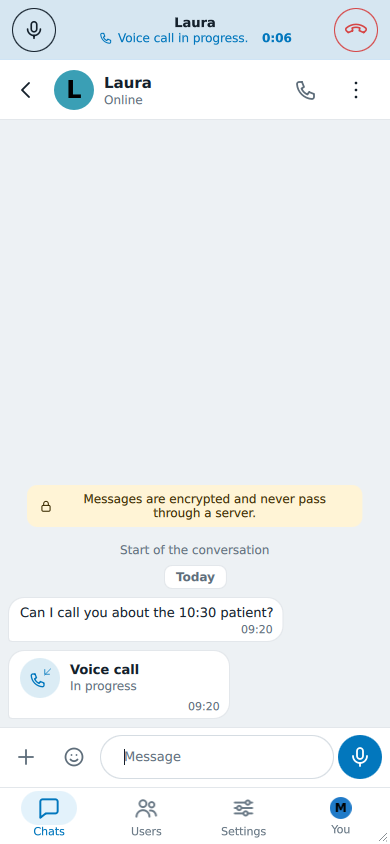
- Mute, on the left, stops your microphone; the icon turns into a crossed-out microphone. Press it again to talk.
- Hang up, on the right, ends the call for both of you.
You can move around BeeBEEP while you talk: open other chats, write messages, send files. The bar stays.
On an Android phone the call goes on when you leave BeeBEEP or the screen turns off. A notification shows who you are talking with and for how long; press it to come back to BeeBEEP, or press Hang Up in it to end the call.
Calls in the chat
Every call leaves one row in the private chat with the person, as a phone's call log does: the arrow shows whether it was made or received, and the line under Voice call says how it went -- its length, or Declined, No answer, Busy, Missed.
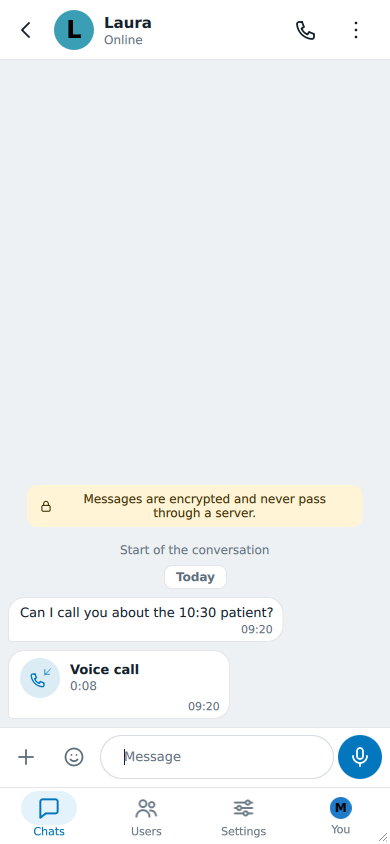
A call you did not answer reads Missed; Missed: you were busy when you were in another call, Missed: you were away when you were not connected. Press the row to call back.
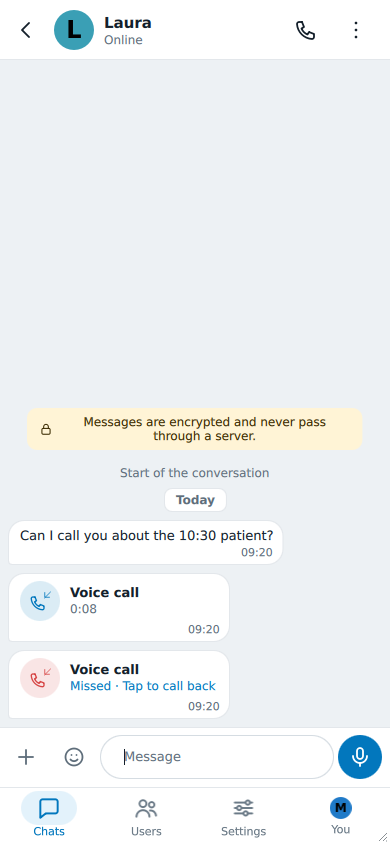
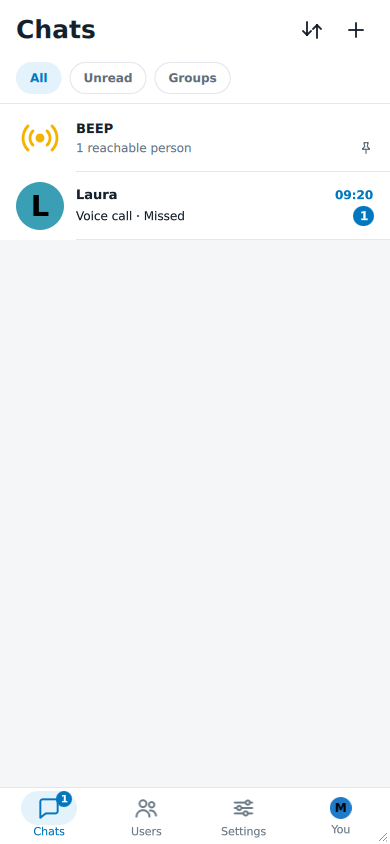
A missed call counts as one unread message, and the chats list shows it on the chat's row.
Muting a chat
A chat you muted does not ring aloud and gives no notification, but its calls still show. The line under the chat's name says Notifications off while it is muted.
- On a computer with a wide window, press the bell in the chat's header.
- On a phone, or in a narrow window, open Chat options (the button at the right of the header) and press the entry with the bell: Notifications on turns into Notifications off, and back.
The microphone
BeeBEEP asks for the microphone when you first call or answer. If the system refuses it, nothing goes out and a line tells you where to allow it. Declining a call never needs the microphone.
Windows
Open Settings, Privacy & security, Microphone, and allow BeeBEEP.
macOS
Open System Settings, Privacy & Security, Microphone, and allow BeeBEEP.
Linux
On Wayland the small ring window does not appear: the desktop's own notification tells you about the call instead, together with the strip in BeeBEEP's window.
For administrators
Calls belong to the communication category of plugins, and an administrator can turn them off on a computer: see turning calls off. The Call plugin is then not loaded, and a call to that computer is answered as unavailable, with nothing shown to its user.