Sharing your screen
How to show your screen to a contact from a chat, watch a screen shared with you, and send a picture of your screen in a chat.
For: users, administrators · From BeeBEEP 6.0.0 · Updated on
Screen sharing lets the person you are chatting with watch your screen while you work: a document, a page, a problem you want them to see. The picture goes straight from your computer to theirs, encrypted, with no server in between. This page is for whoever shares or watches a screen, and for the administrator who decides whether screens may be shared.
What you need
- A computer to share from: Windows, macOS or Linux. A phone or a tablet cannot share its screen, but it can watch one shared with it.
- A contact: you share with a user you have made a Contact, in your private chat with them, one person at a time. You cannot share with a group, in BEEP, with a user you have blocked or with a person who uses BeeBEEP 5.
- A direct connection: the other person must be online and reached directly on your network, not through a relay or over Bluetooth.
When all of this is true, the chat's header shows a monitor button. An administrator may turn screen sharing off; then the button does not appear.
Sharing your screen
Open the private chat with the person and press the monitor in the chat's header.
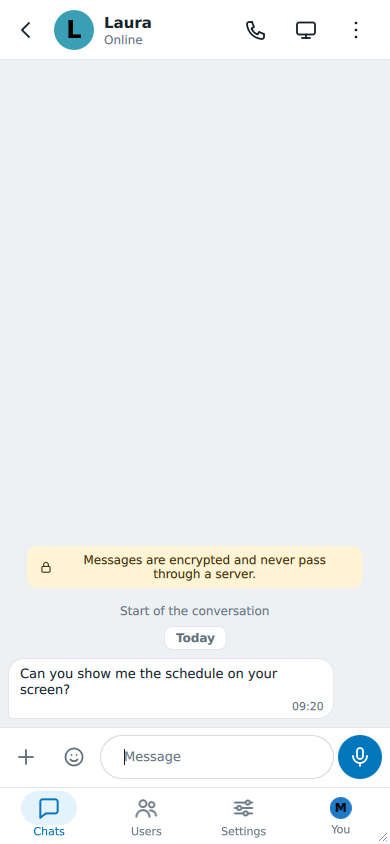
BeeBEEP asks first, every time: Share your screen with Laura?, and reminds you that she sees everything on your screen while you share it, notifications too. Nothing leaves your computer before you press Share; Cancel shares nothing.
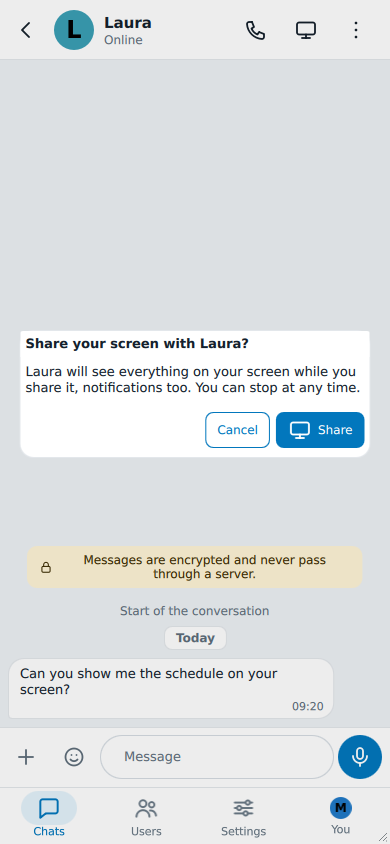
Laura then finds an invitation in her chat with you, and your chat reads You offered to share your screen with Laura, Waiting for an answer. The share starts when she presses View. If she presses Decline, your card reads Declined; if she does not answer within about 30 seconds, the invitation expires and your card reads Expired.
What the other person sees
- One whole screen: the one your pointer is on when the share starts, with every window on it. With several screens, move the pointer to the one you want to show before you press Share. On Wayland the desktop asks you which screen instead (see Linux).
- Everything that appears there while you share: other programs, messages, notifications. Close what they should not read before you start.
- Where your pointer is, on most systems (see on each system).
You do not see your own screen in a window: BeeBEEP shows you only the bar described below, so that nothing of BeeBEEP stands over what you share.
While you share
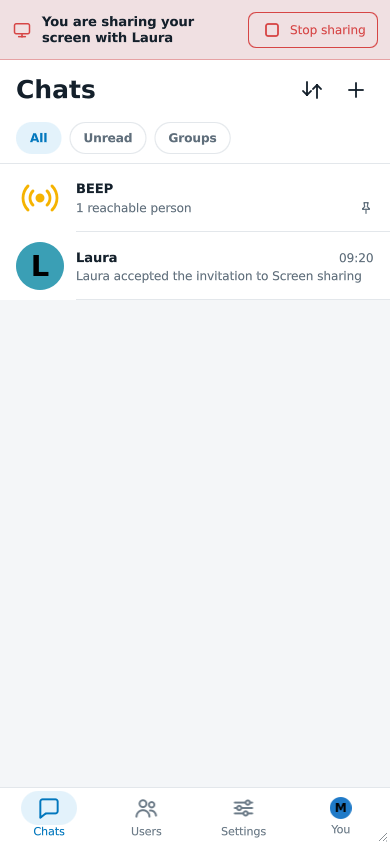
A bar stays on top of every page of BeeBEEP while you share: the monitor, You are sharing your screen with Laura and Stop sharing.
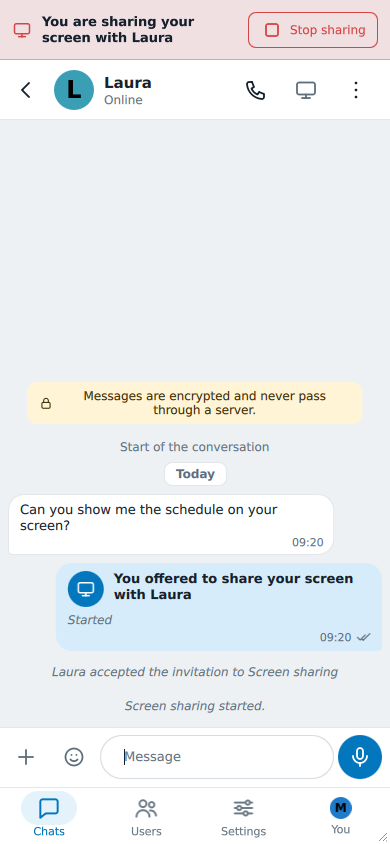
The bar follows you through BeeBEEP: you can open other chats, write and send files while you share.
When BeeBEEP is hidden in the system tray, its icon still tells you: the first line of its tooltip is the same sentence as the bar's.
You can share one screen at a time. While you share, or watch someone else's screen, the monitor button is greyed, and pressing it says You are using Screen sharing: finish it first. A voice call with the same person can go on beside the share.
Stopping
Press Stop sharing on the bar. The share ends for both of you at once, and the chat shows a line saying that screen sharing ended.
Watching a screen shared with you
When someone shares their screen with you, a card appears in your chat with them: Laura wants to share the screen with you, with View and Decline. Nothing of her screen reaches you before you press View.
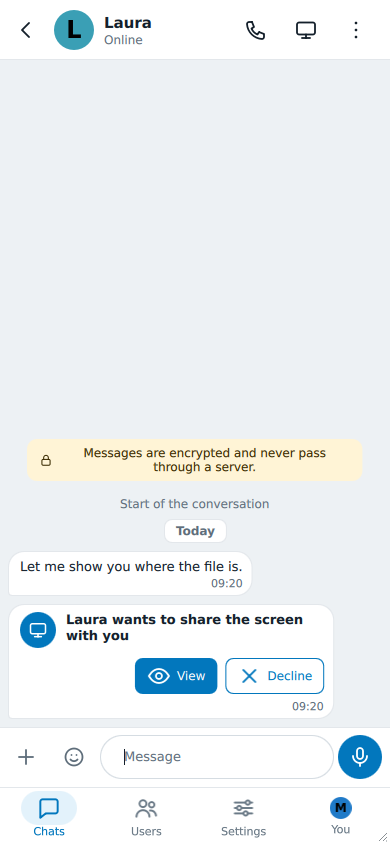
Answer within about 30 seconds: after that the card reads This invitation has expired, and Laura can share again.
The window
On a computer, her screen opens in a window of its own, so that your chats stay usable beside it. The line on top says whose screen it is and since when: Laura's screen, since 10:42, or waiting for the picture for the moment before the first one arrives.
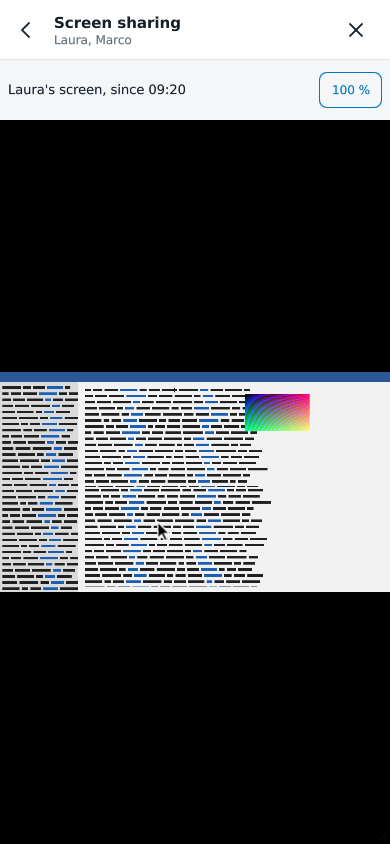
- Fit shows her whole screen in the window; it is how the window opens.
- 100 % shows her screen at its real size, one dot for one dot: move around it with the mouse wheel or by dragging. Press Fit to go back.
- On a touch screen, pinch the picture to make it larger or smaller.
Where her system lets BeeBEEP know, her pointer shows on the picture.
When the share ends
- Laura stops sharing: the window closes by itself.
- You stop watching: press End, the cross at the top of the window, and confirm End this session for everybody?. The share ends for both of you.
- You close the window: the share goes on. The Apps tab lists it under In progress, with Open to see it again and End to stop it.
- The connection drops, or one of you goes offline: the share ends by itself after a few seconds without a picture.
Sending a picture of your screen
When a picture is enough, send a screenshot instead: it becomes an ordinary file of the chat, which anyone in it receives, a person still on BeeBEEP 5 included. It is there on a computer, in every chat but BEEP.
Press the + beside the message field and choose Screenshot.
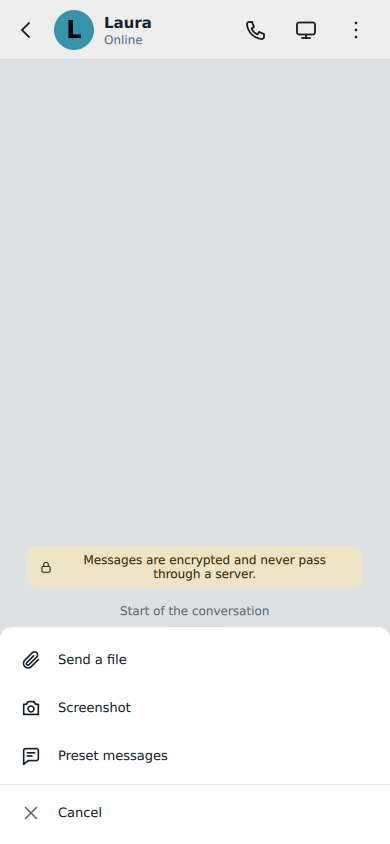
- One screen: BeeBEEP hides its own windows for a moment, takes the picture of the screen it is on, and comes back.
- Several screens, or other programs' windows open: Take a screenshot opens first. Under Screens, a tile for each one, Screen 1, Screen 2, with BeeBEEP is here under BeeBEEP's own; under Windows, a tile for each program's window, by its title. Press a tile and the picture is taken; Cancel takes none. A window is taken as it is, even with another one over it.
The picture is not sent yet: it waits in a strip above the message field, with its name and a button to remove it. Write a few words if you like, then press Send: the picture goes first, then your text. You can send it with no text at all.
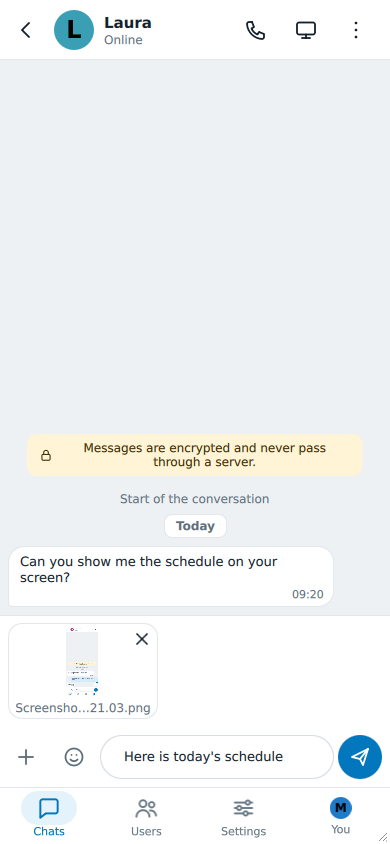
A picture you remove from the strip, or leave there when you close the chat, is deleted. A picture you send is kept in the BeeBEEP folder of your Pictures; turn Settings > Preferences > Keep my screenshots off and it is deleted the day after instead.
When the picture cannot be taken, the + says The screen could not be captured.
Your privacy
- Nothing is shared without a yes on both sides: you confirm before the invitation leaves, and the other person presses View before anything of your screen reaches them.
- Nothing goes through a server, nor through another person's BeeBEEP: the picture travels over the encrypted connection between the two of you, and only when that connection is direct.
- Sharing opens no new connection: your firewall has nothing new to allow.
- You always know: the bar stays on top of BeeBEEP and the tray icon says so for as long as you share.
On each system
Windows
Your screen is shared as it is. The other person sees an arrow drawn where your pointer is.
macOS
The first time you share, macOS asks whether BeeBEEP may record the screen. Allow it in System Settings, Privacy & Security, Screen & System Audio Recording, then open BeeBEEP again: the permission counts from then on. Until it is allowed, a share ends as soon as it starts. The Screenshot of the message field needs the same permission.
While you share, macOS shows its own recording sign in the menu bar, beside BeeBEEP's bar. The other person sees your pointer as it is on your screen.
Linux
On X11 your screen is shared as it is, and the other person sees an arrow drawn where your pointer is.
On Wayland the desktop asks at every share which screen to show, in its own Share Screen window: choose it and press Share. The desktop may show its own sign that the screen is shared. On Wayland the other person does not see your pointer, and the Screenshot of the message field answers The screen could not be captured.: take the picture with your desktop's own tool and send it as a file.
For administrators
Screen sharing belongs to the communication category of plugins, with the voice calls, and an administrator decides on each computer, in its beebeep.rc (see the plugin switches).
To keep the calls and turn screen sharing off:
[Plugins]
AllowScreenCapture=false
To turn off screen sharing and the calls together:
[Plugins]
DisabledCategories=communication
Either way the computer neither shares nor watches a screen. The monitor button does not appear there; the other computers learn that it has no screen sharing and offer it none, and an invitation that reaches it all the same is answered as unavailable, with nothing shown to its user. Neither key removes the Screenshot of the message field: it is a picture the user sees before sending it, sent as an ordinary file.
See also
- Voice calls, to talk while you share.
- Sending and receiving files, for what happens to a screenshot once it is sent.
- Settings, for Keep my screenshots.