Settings
Every setting you can change in BeeBEEP, in the order of the Settings tab, with what it does, its default and what differs on a phone.
For: users · From BeeBEEP 6.0.0 · Updated on
The Settings tab holds everything you can change in BeeBEEP. This page goes through it entry by entry, in the order the tab lists them, and says what each control does and what it is set to when you first start. It is for anyone who uses BeeBEEP; what an administrator sets for a whole office is on settings for administrators.

How the Settings tab works
Each entry opens a page of its own. On a phone, or on a window too narrow for two columns, the page covers the list and Back returns to it; on a wide window the page opens beside the list and the entry you are on is lit.
A switch or a choice applies the moment you tap it. Four things wait:
- the network password, which is applied with Apply;
- the language, which changes at the next start;
- the panic log, which takes effect at the next start;
- Prefer IPv6 over IPv4, whose announcement at start follows at the next start.
Some entries exist only on a computer: Window and Automation, and inside other pages Language, Download folder and Import from BeeBEEP 5.x. Where a default differs between a computer and a phone, the tables say so.
When an administrator has fixed a value for your office, the page shows it and says so, and you cannot change it here. That is the case for your circles, under Privacy, which read Set by your administrator., and for the network effort, which reads Custom (managed). What an administrator can fix is on the policy file.
Preferences
What you accept from other people. The three switches are saved as your preferences and your contacts' BeeBEEP knows them.

| Control | What it does | Default |
|---|---|---|
| Join "Chat with Everyone" | when off, you are not in the chat with everyone and cannot write to it | on |
| Accept file transfers | when off, files offered to you are refused and Download automatically is greyed | on |
| Download automatically | the largest file from a contact that downloads without asking; opens its own page, below | any size on a computer, 20 MB on a phone |
| Download folder | where received files go; tap to choose another folder; on a computer only | the system's Downloads folder |
| Use the system Downloads folder | goes back to the system's folder; shown only once you have chosen another one; on a computer only | not shown |
| Accept voice messages | when off, you do not receive voice messages | on |
| Games and tools | the plugins BeeBEEP loaded and the games and tools in progress, or the ones it could not load; shown only when there is something to list | shown when there is something |
On a phone the received files stay in BeeBEEP's own documents area, so there is no Download folder row.
Download automatically
A file offered by a contact starts downloading at once when it is not larger than the size you choose here; a larger one waits for you to tap Accept. A file from someone who is not your contact always waits, and a voice message always downloads.

| Choice | What it does | Default |
|---|---|---|
| Any size | every file from a contact downloads by itself | the choice on a computer |
| Up to 5 MB | only files up to 5 MB download by themselves | no |
| Up to 20 MB | only files up to 20 MB download by themselves | the choice on a phone |
| Up to 100 MB | only files up to 100 MB download by themselves | no |
| Custom size | a size you type, from 1 to 1048576 MB; applied when you confirm the field | no |
The default is tagged on the page itself. Who counts as a contact is in getting started.
Privacy
Who sees what of you, whose invitations reach you, which networks make contacts and which circles you are in.

Contacts
| Control | What it does | Default |
|---|---|---|
| Profile details | who may fetch your email, phone number, location and the rest of your profile: Only my contacts or Everyone | Only my contacts |
| Gallery | the same for the photos and videos of your gallery | Only my contacts |
| Group invitations only from contacts | when on, an invitation to a group from someone who is not your contact is discarded without being shown; when off it arrives with a warning | off |
| Networks | the networks BeeBEEP knows and whether each is private or public; opens its own page, below | the row names the network you are on |
Your name, color and photo are seen by everyone whatever you choose. Everyone is meant for a shop or a reception desk, where anyone on the network may look.
Networks
BeeBEEP asks whether a network is private or public the first time you join it. The page lists Connected now the networks this computer is on and Known networks the ones it has used before, each with its category. Tap one to change it.

| Choice | What it does |
|---|---|
| Private | home or office: the people you meet there become your contacts |
| Public | a cafe, a station, a hotel: people you meet there stay as they are, and your contacts see less of you while you are there |
A network still without an answer is shown as Unclassified. On Windows the system decides the category: the row says Set by Windows and the change is made in the Windows network settings.
When people became contacts on a network, its page lists them under Contacts made here and offers Remove them as contacts, which asks you to confirm. People you made contacts yourself stay.
Circles
The Circles card lists your circles. Tap the icon at the right of one to remove it, after a confirmation, and Add a circle to add one: pick a circle heard on your network or type a new name. You see only the people who share a circle with you, and with no circles you see those who have none. Circles says what changes in the lists and the chats.
When your administrator sets your circles the card shows them with Set by your administrator. and has nothing to add or remove: see when an administrator sets them.
Notifications

| Control | What it does | Default |
|---|---|---|
| Show notifications | when off, new messages only show in the chat list with their unread count | on |
| Play a sound | BeeBEEP's own beep with each notification, unless the do not disturb of your system is on; it cannot be turned on while notifications are off | on |
A single chat can also be muted with the bell at the top of the chat. Either way only the notification of the system is held back, never the unread counts.
Appearance

| Control | What it does | Default |
|---|---|---|
| Theme | light or dark; opens its own page, below | Follow the system theme |
| Language | the language of BeeBEEP; opens its own page, below; on a computer only | Follow the system language |
Theme

| Choice | What it does | Default |
|---|---|---|
| Follow the system theme | light or dark, whichever the device is set to, and it switches along with it | the choice |
| Light | always light | no |
| Dark | always dark | no |
The theme changes at once. Whoever wants other colors can edit the theme file: theming says how.
Language
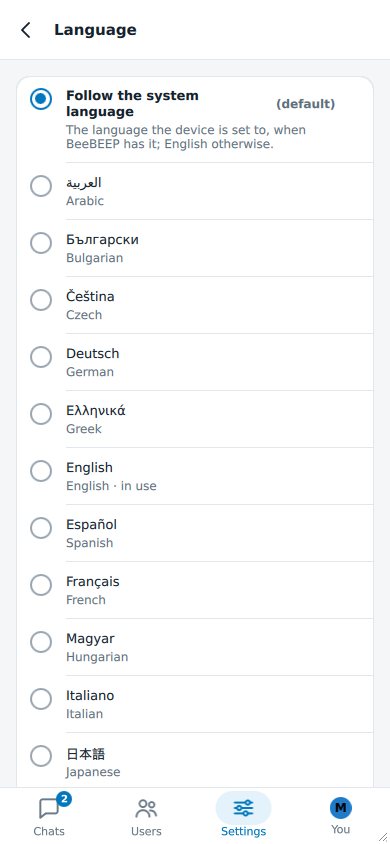
The language changes at the next start: until then the row says Restart BeeBEEP to apply. On a phone BeeBEEP has no language row and uses the language the system sets for it.
| Control | What it does | Default |
|---|---|---|
| Follow the system language | the language the device is set to when BeeBEEP has it, English otherwise | the choice |
| a language | one of the languages BeeBEEP has, each in its own name and in English | no |
| Translations folder | a folder with translation files, such as beebeep_de.qm, used instead of the ones included in BeeBEEP, from the next start | the translations folder of your data folder |
| In use now | which translation is loaded, when there is one to name | -- |
| Open folder | opens the translations folder in your file manager | -- |
| Change... | chooses another translations folder | -- |
| Use the default folder | goes back to the default folder; shown only once you have chosen another one | not shown |
The translations folder is for whoever translates BeeBEEP and wants to try the work: see translating.
Window
Only on a computer.
| Control | What it does | Default |
|---|---|---|
| Closing the window minimizes to the system tray instead of quitting | when on, the window's close button hides BeeBEEP, which keeps running and can be brought back from its icon in the system tray; when off, it quits | off |
| Keyboard shortcuts | opens the page of BeeBEEP's own keys; the row says On or Off | Off |
Keyboard shortcuts
BeeBEEP's own shortcuts work only once you turn them on. The usual keys of your system, such as the one to quit, always work and are not listed.
| Control | What it does | Default |
|---|---|---|
| Use BeeBEEP's own shortcuts | turns BeeBEEP's keys on or off | off |
| Hide BeeBEEP | the key that hides the window; tap the row, then press the new keys, or Escape to give up | Ctrl+M |
A key needs Ctrl, Alt or Meta with another key, and one no other BeeBEEP shortcut has: otherwise the page says Not taken and keeps the old key. Reset appears at the right of a row you changed and brings its default back.
Network
How your device is found and reaches the others. Most of these are right as they are in an office or at home; they are here for the places where BeeBEEP does not find anyone by itself, which finding the people you want to reach explains.
| Control | What it does | Default |
|---|---|---|
| Listening port | the port other devices connect to; read only, and it says not started yet until BeeBEEP has started to listen | 6475 |
| This device's addresses | the addresses a colleague can type to reach you, one to a line | -- |
| Relay messages for others | when two people cannot reach each other directly, whether their messages may pass through you; opens its own page, below | For everyone on a computer, Only for my contacts on a phone |
| Network effort | how much BeeBEEP does to stay in touch with everyone; opens its own page, below | Normal |
| Talk to BeeBEEP 5.x peers | lets BeeBEEP talk to people who still use version 5, whose encryption is weaker; changing it restarts the network; shown only in a build that has the bridge | on |
| Find peers with Bonjour | also looks for colleagues through Bonjour (mDNS), for networks where the broadcast does not reach | on on macOS, iOS and Android, off elsewhere |
| Prefer IPv6 over IPv4 | reaches a device offered on both families over IPv6; applies to the next connection | off |
| Import from BeeBEEP 5.x | brings contacts, groups and profile from an old installation; on a computer only, and only in a build that has the bridge | not shown otherwise |
| Use network password | applies a password shared by every device on this network; leave it off if the network has none | off |
The listening port and the addresses are what you tell someone whose BeeBEEP cannot find you; they add you with Add a user by address in Users (getting started). Both are also on the You tab.
Relay messages for others
When two people cannot reach each other directly, their messages can pass through you. They are never shown on your device, but relaying uses some battery and data.

| Choice | What it does | Default |
|---|---|---|
| For everyone | anyone on the network can reach others through you | the choice on a computer |
| Only for my contacts | only when the sender or the recipient is one of your contacts or shares a group with you | the choice on a phone |
| Never | nobody passes through you; your own messages can still pass through others | no |
The default is tagged on the page itself.
Network effort
More effort notices a colleague who left sooner, and costs more traffic.

| Choice | What it does | Default |
|---|---|---|
| Normal | for most offices | the choice |
| High | for a busy LAN on a wired desktop | no |
| Max | for a wired desktop only: five times the idle traffic | no |
When your administrator has set the budgets, the page shows Custom (managed), which you can neither choose nor leave.
Import from BeeBEEP 5.x
Brings the contacts, the groups and the missing parts of your profile over from an older BeeBEEP on the same computer. Nothing already in BeeBEEP is changed, and chats are not imported. Search this computer looks in the usual folders of a BeeBEEP 5.x installation, and Choose a folder... takes the old BeeBEEP's own folder or its data folder. A report says what was brought over, or that nothing was found.
Network password
Use network password shows a Network password field. Type the password your network uses and press Apply: Restore brings back what was saved. Applying reconnects you to the network, so the people you are talking to drop for a moment and reconnect. The password is also applied when you leave the page. Turning the switch off stops using the password and keeps the one you saved.
Security

| Control | What it does | Default |
|---|---|---|
| Accept new security keys automatically | a contact's security key changes when BeeBEEP is reinstalled; on, BeeBEEP accepts the new key by itself; off, you confirm each new key in that contact's chat, and until you do, messages with that contact that pass through other users cannot be delivered | on |
The key of a contact you verified in person is never replaced automatically, whatever you choose. What to do when a chat says a key has changed is in the FAQ.
Automation
Only on a computer. It lets a program of yours on this computer control BeeBEEP through the local console; it is for people who write such a program, and the rest can leave it alone.
| Control | What it does | Default |
|---|---|---|
| Console | switches the console on; the row says On or Off; switching it off cuts every program at once | off |
| Address | shown while the console is on: where a program connects, with Copy | new at each switch-on |
| Password | shown while the console is on, hidden until you show it, with Copy | new at each switch-on |
| Look only | a program can read your chats and your contacts and change nothing | the choice |
| Act as you | a program can also write and do what you do in BeeBEEP, but never quit it or change its security | no |
The console is off at every start. You choose what a program may do before you switch it on: while it is on, the two choices are greyed and the page says Switch the console off to change this. While programs are connected the page counts them.
A console started from the command line is shown read-only, with what it allows, and has no switch: whoever started it decides when it ends. If it cannot start, the page says why.
Log

| Control | What it does | Default |
|---|---|---|
| Enable panic log | writes every message of every category to the log, Qt's own included; meant for troubleshooting one specific report; it takes effect only after BeeBEEP is closed and opened again | off |
About BeeBEEP
The last entry has no switch. Under the bee and the name of BeeBEEP it shows the version you run and a line saying what BeeBEEP is, then:

| Row | What it shows |
|---|---|
| Developed by | who makes BeeBEEP |
| Website | the BeeBEEP website; tap to open it |
| Translations | each language BeeBEEP has, with Native, Reviewed by and the names of its reviewers, or Translated by the BeeBEEP team: help us review it |
| Help translate | the page of the website about translating; tap to open it |
| Third-party software | each component BeeBEEP uses, with its version and license |
A third-party row opens the full license text of the component, with License web page to read it on the web. To translate BeeBEEP yourself, see translating.