Chats
What you can do with a message in a chat -- reply, forward, react, ask with a poll, pin, edit, delete, find it -- and with one still waiting to be sent.
For: users · From BeeBEEP 6.0.0 · Updated on
A chat is where you write to one person or to a group. This page explains what you can do with each message once it is there: answer it, pass it on, react to it, ask everyone a question with a poll, keep it in sight, correct or take back one of yours, see what happened to it, find it again however far back it is, and what to do with a message that has not arrived yet. It is for everyone who uses BeeBEEP.
The message menu
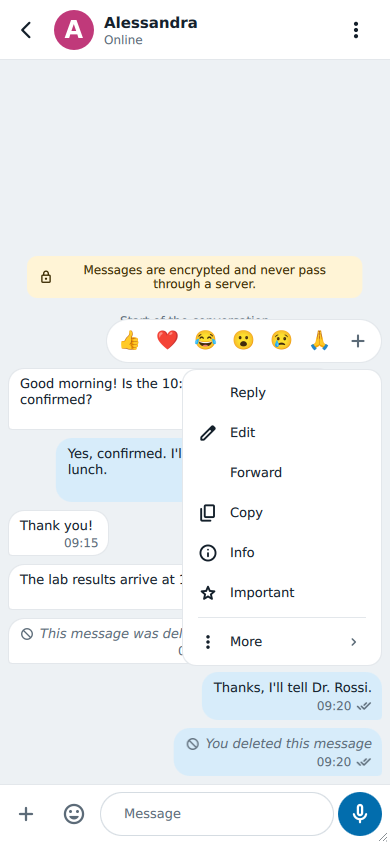
Long-press a message (right-click on a computer) to open its menu. Above it a row of six quick reactions, with + for any other emoji; below it the actions:
- Reply, Edit (on a message of yours you may still change), Close poll (on a poll of yours still open), Forward (not on a poll), Copy (on a message with text), Info, Mark as important;
- More, which turns the menu to its second page: Select, Pin, Delete, and More again to go back.
On a touch screen two gestures are shorter still: swipe a message to the right to reply to it, to the left to open its Info.
Replying
Choose Reply and write your answer: a banner above the field shows the message you are answering, and the cross beside it drops the reply. Your answer carries a quotation of that message; tap the quotation to jump to the original.
Forwarding
Forward opens Forward to..., the list of your chats: tap one and the message is sent there, marked Forwarded from and the name of whoever wrote it. To forward several messages at once, select them first (see Selecting several messages).
What is forwarded is a message's text: a file or a voice message cannot be forwarded. A message is never forwarded into BEEP either: a BEEP is written, not passed on (BEEP).
Reactions
Tap one of the quick reactions in the menu, or + to pick any emoji. You have one reaction per message: the same emoji again takes it back, another one replaces it. The reactions show under the message, with a number when more than one person chose the same emoji; tap one to react the same way, or to take yours back.
Everyone in the chat sees the reactions, except a user of BeeBEEP 5. In BEEP a reaction goes to the author of the message alone (reactions in BEEP).
Polls
A poll asks everyone in a chat one question with a few answers to choose from: tap + beside the field and choose Poll. How to ask, vote, see who voted and who has not, and close one is on its own page, Polls.
Important and pinned messages
Mark as important puts a star beside the message's time, so you find it again while scrolling; Unmark as important takes it off.
More > Pin keeps a message at the top of the chat, in a bar that stays there while you scroll: tap its text to jump to the message, and Unpin to remove it. A chat has one pinned message; pinning another one replaces it. A pinned message shows a pin beside its time.
Both are yours alone: nobody else in the chat is told, and their copy of the message does not change.
Copying
Copy puts the text of the message on the clipboard, and a short line says that it was copied. A file or a voice message has no Copy.
Selecting several messages
More > Select turns the chat into a list you tick: tap the messages you want. A bar takes the place of the field you write in and says how many are selected: Actions there copies, forwards or deletes them all at once, and the cross at its start ends the selection.
Editing a message
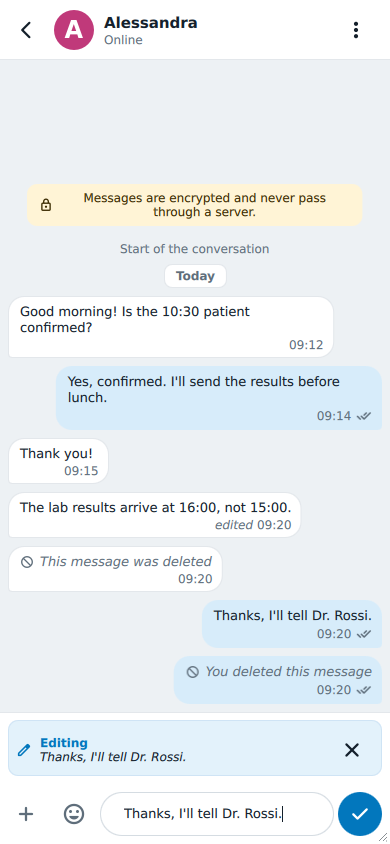
Choose Edit on a message of yours to correct it. The field below takes its text, a banner above it says Editing and shows the message as it was, and the send button becomes a check mark. Change the text and tap the check mark (Return on a computer) to save it, or the cross in the banner (Escape on a computer) to leave it as it was. Whatever you were writing before comes back in the field either way.
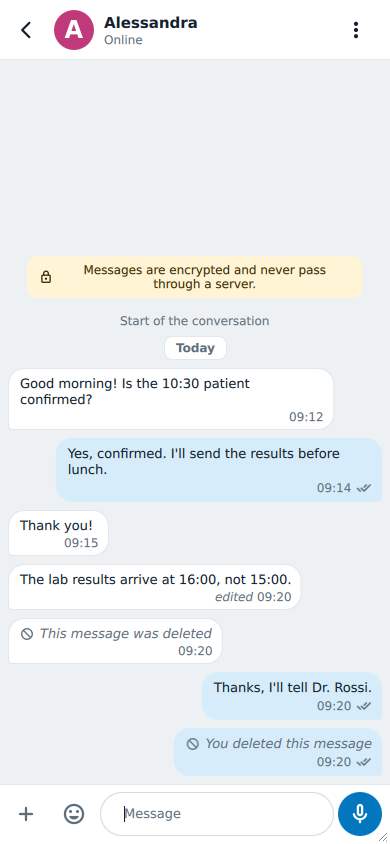
Everyone in the chat sees the new text in the same place, with the same time and the word edited beside it. An edit sends no notification.
You can edit:
- a message you wrote, with text and no file;
- for 15 minutes after writing it, unless your administrator chose another time or turned editing off.
A file, a voice message, a forwarded message and a deleted one cannot be edited. A message nobody has received yet -- the person is offline, say -- is simply sent as you corrected it, with no edited mark.
Each copy keeps only the latest text: nobody can see what a message said before it was edited.
Deleting a message
Choose More, then Delete. What BeeBEEP asks depends on the message.
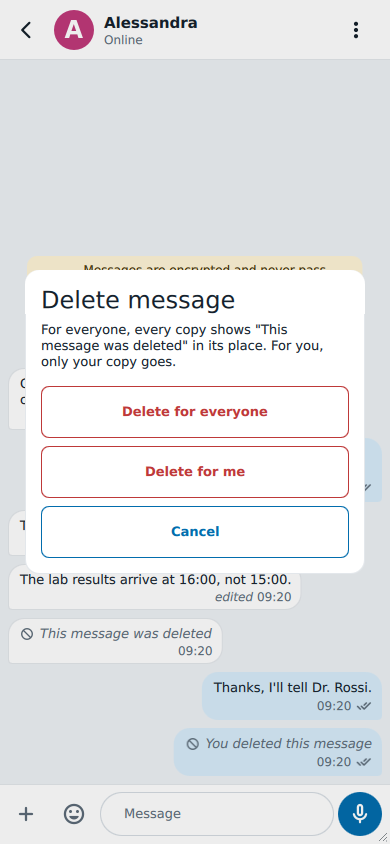
On a message you wrote less than a day ago, you choose:
- Delete for everyone: every copy of the message shows This message was deleted in its place; yours shows You deleted this message.
- Delete for me: only your copy goes; everyone else keeps theirs.
- Cancel: nothing changes.
On someone else's message, or on one of yours past that day, BeeBEEP asks whether to delete it for you only: Yes removes your copy, No leaves it.
A message deleted for everyone keeps its place and its time, so the conversation around it still reads in order. What it said is gone from every copy: its reactions go, a reply that quoted it shows Deleted message instead of the quotation, and in the list of chats a chat whose last message it was shows the same line. A file sent with it that the other person had already saved stays where they saved it; one still downloading is stopped.
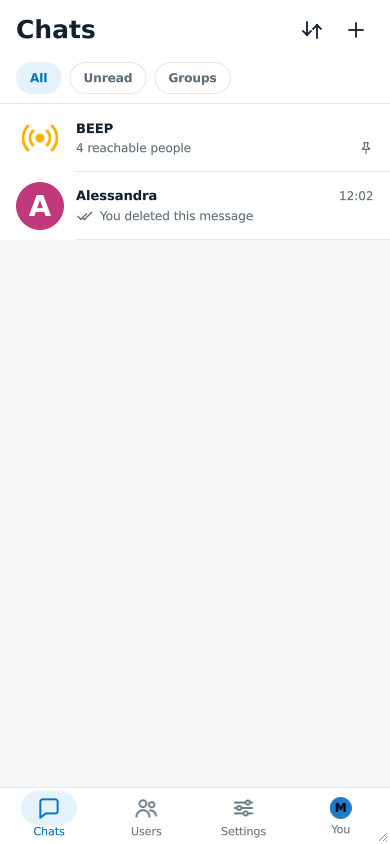
The deleted message keeps a menu with Delete for me, to remove the line from your chat too, and Info.
If you delete a message of yours for you only before it has left -- the person was offline -- it never leaves: nobody receives it.
Deleting a conversation
To delete every message of a chat at once, open the chat's information -- tap the name at the top of the chat -- and, at the bottom, tap Delete conversation. In BEEP, the room of whoever is online, it is in Chat options (the three dots at the right of the header) instead. BeeBEEP asks first; Cancel is the choice ready under Enter, so a key pressed by mistake never deletes.
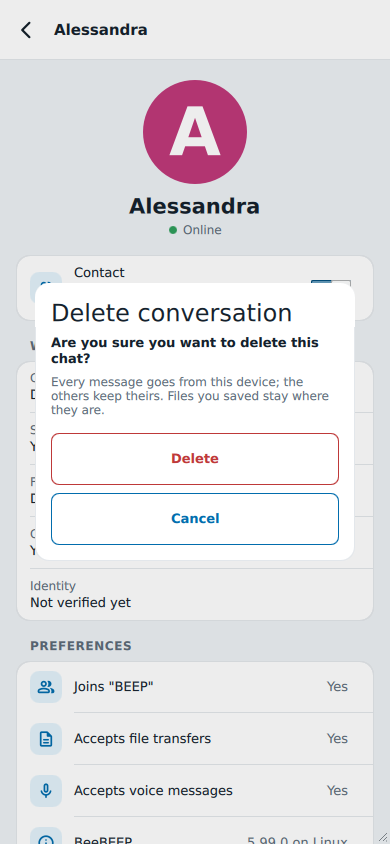
Delete removes the whole chat from this device only, as Delete for me does for one message: everyone else keeps theirs, and nothing is sent. The chat itself stays, empty: the person is still in your list, a group still has you as a member, and a chat you muted or archived stays so. A message of yours that had not left yet never leaves. Files you saved -- downloads, screenshots kept in your pictures -- stay where they are; BeeBEEP's own copies of voice messages and pictures go. Then BeeBEEP shows you the chat, now empty.
Searching in a chat
To find a message in the chat you have open, open its search:
- on a computer with a wide window, click the magnifier at the top of the chat;
- on a phone or a narrow window, tap Chat options (the three dots at the top) and choose Search;
- or press Ctrl+F (Cmd+F on a Mac) while the chat is on screen. On a wide window, if you last clicked in the list of chats beside it, Ctrl+F searches the list instead: click in the chat first.
A search bar opens under the chat's name. Type at least three characters: BeeBEEP looks through the whole chat, not only the messages on screen -- the text of each message, the name of each file sent, and in a group or in BEEP the name of who wrote it. Capitals and accents do not matter: a word typed in small letters and without its accent finds it written either way. What you type is looked for as one phrase, never word by word. The name BeeBEEP gives a voice message is never searched, nor a message deleted for everyone.
The newest message found is shown at once, with a yellow border, and the words found are highlighted in it. Beside the field BeeBEEP says where you are: Searching... while it has found nothing yet, 2 of 14... while it is still reading the older messages (the count grows), 2 of 14 once it has read them all, No match when nothing holds what you typed. The first is always the newest.
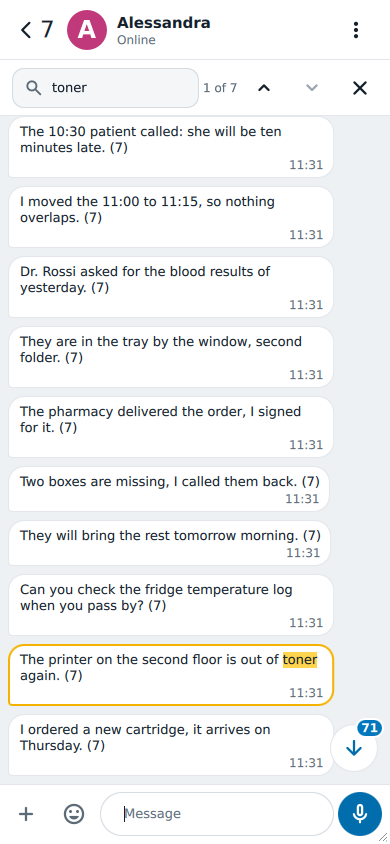
- Previous match (the up arrow) goes to an older message; Next match (the down arrow) to a newer one. An arrow is grey at its end: the search never wraps around.
- On a computer, Return or the Up key go to the previous match, Shift+Return or the Down key to the next one, and Escape closes the bar.
- A match further back than the messages already shown is reached all the same: the chat loads everything up to it, and you can scroll from there.
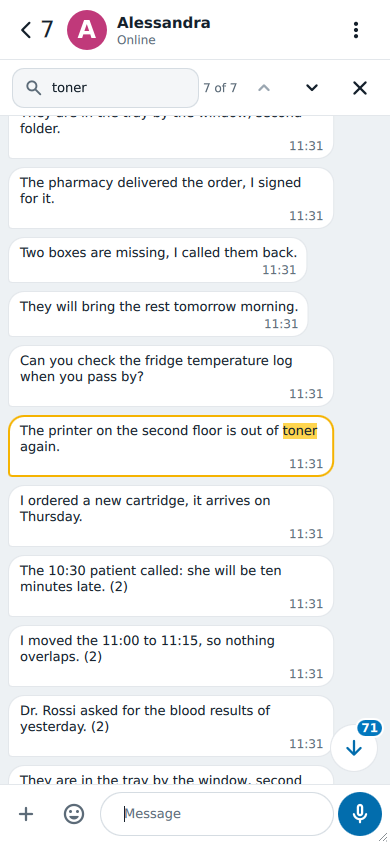
Close search (the cross) closes the bar and forgets what you typed; so does leaving the chat.
To find a chat or a person rather than a message, search the list of Chats or Users: see Finding a chat or a user.
Messages waiting to be sent
A message to someone who is offline is not lost: BeeBEEP keeps it on your device and sends it as soon as the two of you are reachable, even if you closed BeeBEEP in the meantime. It waits 30 days on which you used BeeBEEP. While messages wait, BeeBEEP shows it in three places.
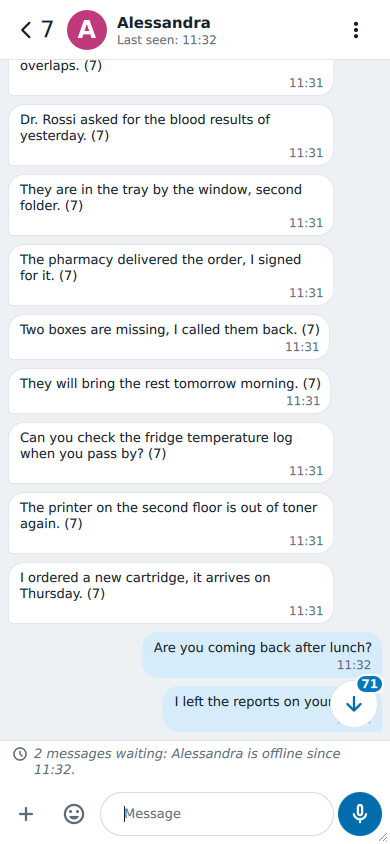
In the list of chats, the chat shows a clock and how many messages wait, where the ticks of your last message would be. While at least one chat has messages waiting, a fourth filter, Waiting, appears beside All, Unread and Groups, and lists only those chats.
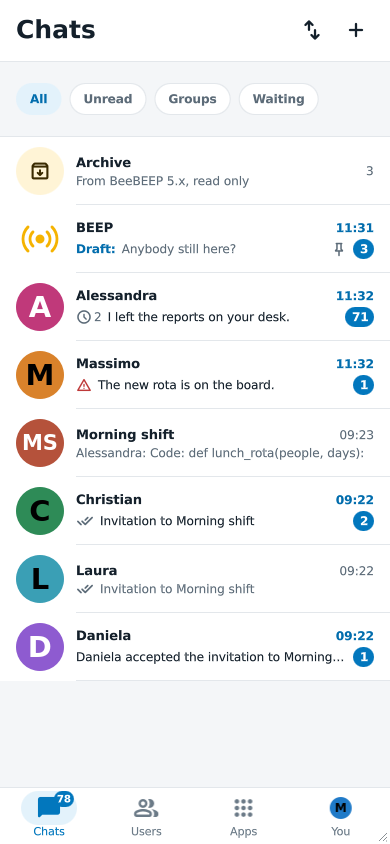
In the chat, a line above the field says how many messages wait and why:
- the person is offline -- 2 messages waiting: Alessandra is offline since 09:16, the time written as their Last seen;
- the person is not visible to you, because you no longer share a circle -- the message leaves if you ever share one again;
- your network is down: nobody can be reached until it is back.
In a group the line names up to two people and counts the rest -- 3 messages waiting for Alessandra, Laura and 2 others: offline. A message on its way to someone reachable right now needs no line.
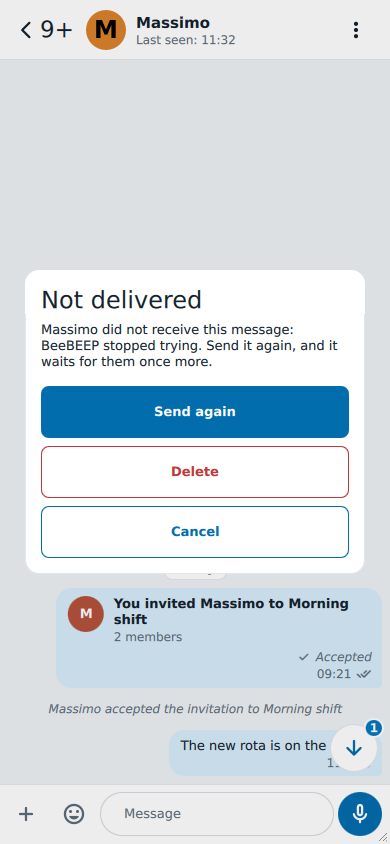
Not delivered. A message that waited all those days without reaching someone shows a red ! beside its time; when it is the chat's last message, the list of chats shows a red warning sign too. Tap the !: Not delivered says who did not receive it and offers:
- Send again: the message is sent once more to whoever missed it, and waits for them again from today;
- Delete: as from the message menu;
- Cancel: nothing changes.
In BEEP messages never wait: whoever does not answer within half a minute has it Not delivered, and there is no Send again -- BEEP reaches whoever is online now, so write it again.
Deleting for everyone is possible for a day after writing a message, unless your administrator chose another time or turned it off. Selected messages offer the same choice when every one of them can still be deleted for everyone.
Message info
Info opens Message info, everything known about one message:
| Line | Shows |
|---|---|
| Created | when the message was written |
| Edited | when its sender last edited it, if they did |
| Deleted | when its sender deleted it for everyone, if they did |
| Reactions | who reacted, with which emoji, and when |
| Recipients | on a message of yours, each person with Sent, Delivered, Read or Not delivered, and the time |
Every time is given on this device's clock, like the times in the chat. The message itself always shows the time it was written, never the time of a later change.
When a change does not reach everyone
- BeeBEEP 5. A user of BeeBEEP 5 cannot receive an edit or a deletion: their copy stays as it was. After your change, a card above the field says so and names them -- for example Not changed for Laura: BeeBEEP 5 cannot edit or delete a message. -- until you tap OK. A message that had not reached them yet is sent as it is now, or not at all if you deleted it (BeeBEEP 6 and BeeBEEP 5).
- BEEP. A BEEP lives only in the moment: an edit or a deletion reaches the people who received it and are still online.
- Someone offline. Everyone else who has the message receives your change when they are next online, as they would a message.
The time limits
The 15 minutes to edit and the day to delete for everyone are counted from the moment you wrote the message; editing does not extend them. An administrator can change both, or turn either off, for everyone in the office (editing and deleting a sent message). When a limit has passed, Edit is no longer in the menu and Delete deletes for you only.