Getting started
Install BeeBEEP, start it, find your colleagues, chat, send a file, make a group, set up your profile and find the settings.
For: users · From BeeBEEP 6.0.0 · Updated on
BeeBEEP is a messenger for people who share a network: an office, a school, a house. It needs no account and no server, and its messages are encrypted. This page takes you from the download to your first chat, file and group, and says where to look when something is missing.
The four tabs
BeeBEEP has four tabs, at the bottom of the screen on a phone and on the side of a window turned wide:
- Chats lists your conversations: Chat with Everyone, your private chats and your groups.
- Users lists the people BeeBEEP has seen on your network.
- Settings holds everything you can change.
- You shows your own profile.

Install BeeBEEP
Windows
Download the installer, beebeep-<version>-windows-x64-setup.exe, run it and finish with Launch BeeBEEP. The portable zip, the firewall rule and the silent installation are on installing BeeBEEP on Windows.
Linux
BeeBEEP for Linux is for 64-bit Intel and AMD computers with Ubuntu 22.04, Debian 12 or a newer system. It comes in three forms, and you need one:
| File | What to do |
|---|---|
beebeep_<version>-1_amd64.deb | install it, then start BeeBEEP from the applications menu or beebeep from a terminal |
BeeBEEP-<version>-x86_64.AppImage | make it executable and run it, nothing is installed |
beebeep-<version>-linux-x86_64.tar.gz | unpack it and run ./beebeep from the folder |
To install the package from a terminal:
sudo apt install ./beebeep_<version>-1_amd64.deb
To run the AppImage:
chmod +x BeeBEEP-<version>-x86_64.AppImage
./BeeBEEP-<version>-x86_64.AppImage
If a firewall is on, it has to let BeeBEEP's two ports through: see what the network must let through.
The first start
The first time, BeeBEEP asks you how you appear to others:

- Check the Display name. BeeBEEP suggests the name of your account on the computer; type another if you like. A name starts with a letter or a digit and has at most 40 characters.
- Tap the picture to choose its color, or the camera on it to choose a photo of your own.
On a computer, Advanced options lets you choose a password for your data. Leave it empty and BeeBEEP makes a random one, kept by your system. A password you choose is the way back into your data if the system's secure storage is ever reset, and nobody can recover it for you.

- Press Get started.
Your name, color and photo can be changed afterwards, whenever you like. The password cannot: this is the only time BeeBEEP asks for it.
See who is there
Open Users. Anyone on the same Wi-Fi or the same cable who runs BeeBEEP appears by itself within a moment, with a green dot when online. There is nothing to add and nothing to accept.

The magnifier at the top opens the search by name together with the pills that filter the list: All, Contacts, Online, Favorites and Blocked. Press it again to close both. A pill other than All stays in sight until you choose All again, and a dot on the magnifier tells you the list is filtered. The arrow beside the + sorts the list, and you can group people by circle if you use them (circles).
When nobody has appeared, the screen says so and lists the usual causes: BeeBEEP is not running on the other device, the two devices are not on the same network (a guest Wi-Fi keeps its devices apart), or a firewall is in the way. Your own address and port are on the You tab: tell them to someone whose BeeBEEP cannot find you, and they add you with the + of the Users tab, Add a user by address. I don't see anyone online goes through every cause.
Contacts
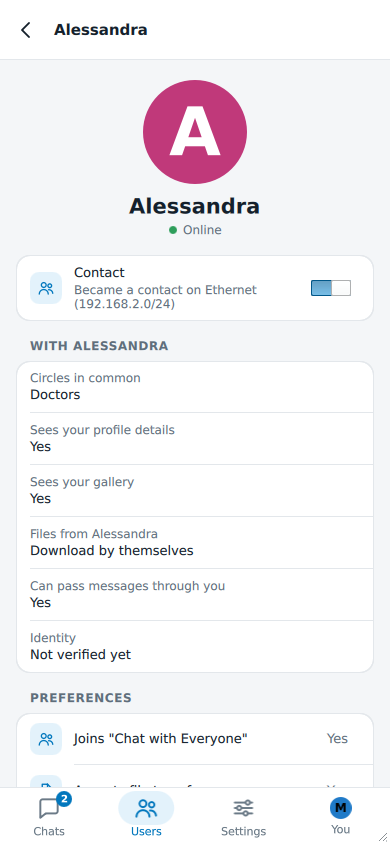
A Contact is a user you trust: contacts see your profile details and gallery, and files they send you download by themselves, up to the size Settings > Preferences sets. Users you meet are not contacts at first. When you join a network, BeeBEEP asks whether it is a private place, like home or the office: Private makes the people you meet there your contacts, Public does not.
To make one user a contact, or to stop, open the user and use the Contact switch.
Write to someone
In Users, tap a person to open the chat with them; the i at the right of the row opens their details instead. A person you have already written to is also in Chats. Type in Message and send it: on a computer Return sends and Shift+Return starts a new line, and the round button at the right sends too. When the field is empty that button is a microphone, and records a voice message. A message may have up to 10,000 characters; Send as file offers to send a longer one as a file.
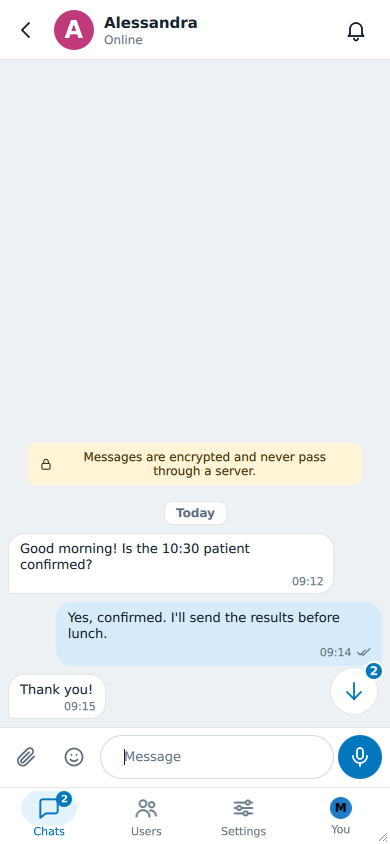
A long-press on a message (a right-click on a computer) opens its actions: Reply, Forward, Copy, Info, Mark as important and, under More, Select, Pin and Delete. Tips says what each one is for.
Chat with Everyone is the first chat of the list: what you write there goes to every user online who takes part in it. Files cannot be sent to it.
Send a file
In a private chat or in a group:
- tap the paperclip, Send a file, and choose the file; or
- on a computer, drag one or more files from your file manager onto the chat. Folders cannot be sent: drop files.
The other person sees the file in the chat. If they are your contact and the file is not larger than they allowed, it downloads by itself; if not, they see Accept and Reject and decide. While you wait for them, Cancel withdraws the offer. The File transfers button at the top of Chats lists the transfers in progress, with Pause, Resume and Cancel.
Make a group
A group is a chat among the people you choose, each of whom accepts an invitation to join.
- In Chats, tap the + (New group).
- Type the Group name, tap the picture if you want another color, and press Create.
- In the group's details, which open by themselves, tap Invite under Members and choose the people, with a message if you want.
Each person you invite sees the invitation in a chat with you, with Accept and Decline. To see a group's details later, tap its name at the top of its chat. They list the Administrators, who can invite and remove people, the Members and the Pending invitations, which an administrator can Withdraw. Leave group takes you out; to come back you need a new invitation from an administrator.
Your profile and picture
Open You: it shows your name, your picture, your details, the circles you are in and your address.

- The camera on your picture chooses a photo from your files: a PNG, JPEG, BMP or GIF.
- The pencil, Edit, opens Edit profile: the picture's color, your Display name, First name, Last name, Birth date, Email, Phone number, Location and Info. Changes are saved when you leave the screen, and Restore brings back what was saved.
- Your display name and picture are seen by everyone. The other fields are seen only by your contacts, unless you change it in Settings > Privacy.
Where the settings are
Open the Settings tab.

The first group is what you use every day: Preferences, Privacy, Notifications, Appearance and, on a computer, Window. The second is Network, Security, Automation (on a computer only) and Log. About BeeBEEP shows the version, the credits and the translations. Settings goes through every entry.